
Wireshark tricks
Improve your Wireshark skills
Tutorials
The following tutorials are amazing to learn some cool basic tricks:
- https://unit42.paloaltonetworks.com/unit42-customizing-wireshark-changing-column-display/
- https://unit42.paloaltonetworks.com/using-wireshark-display-filter-expressions/
- https://unit42.paloaltonetworks.com/using-wireshark-identifying-hosts-and-users/
- https://unit42.paloaltonetworks.com/using-wireshark-exporting-objects-from-a-pcap/
Analysed Information
Expert Information
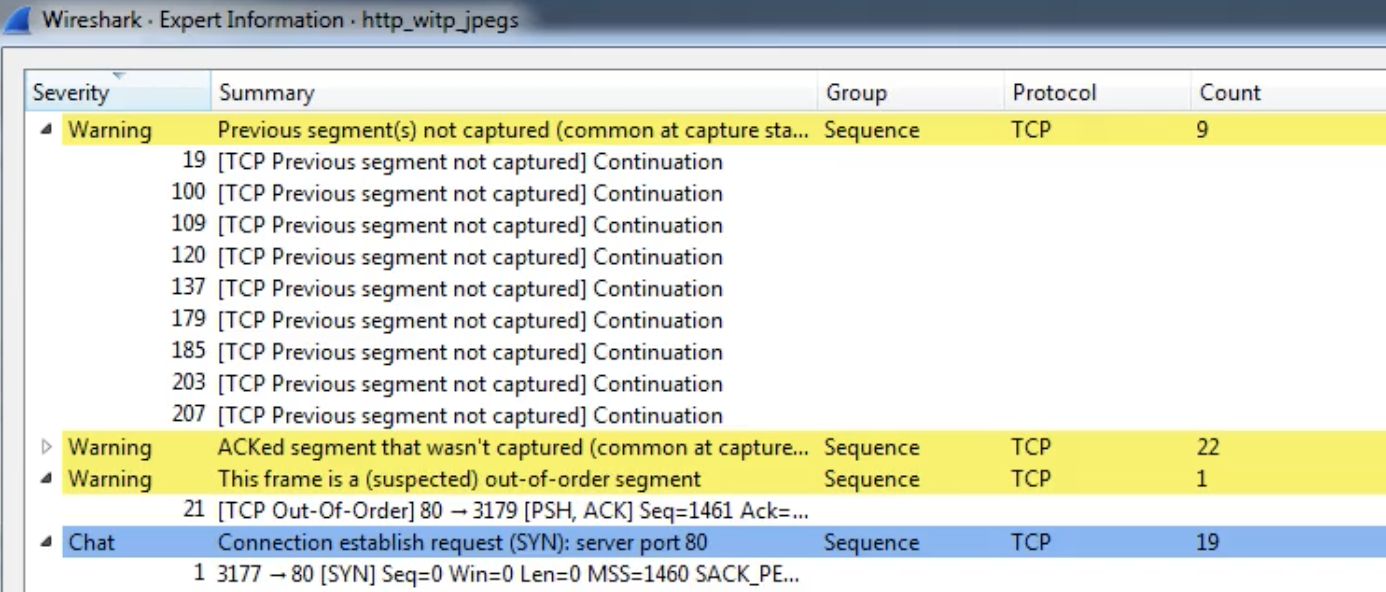
Clicking on Analyze --> Expert Information you will have an overview of what is happening in the packets analyzed:
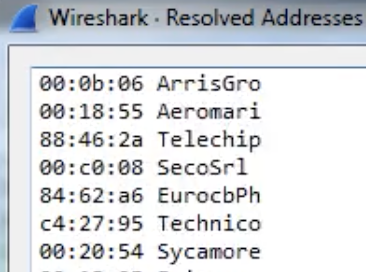
Resolved Addresses
Under Statistics --> Resolved Addresses you can find several information that was "resolved" by wireshark like port/transport to protocol, MAC to the manufacturer, etc. It is interesting to know what is implicated in the communication.
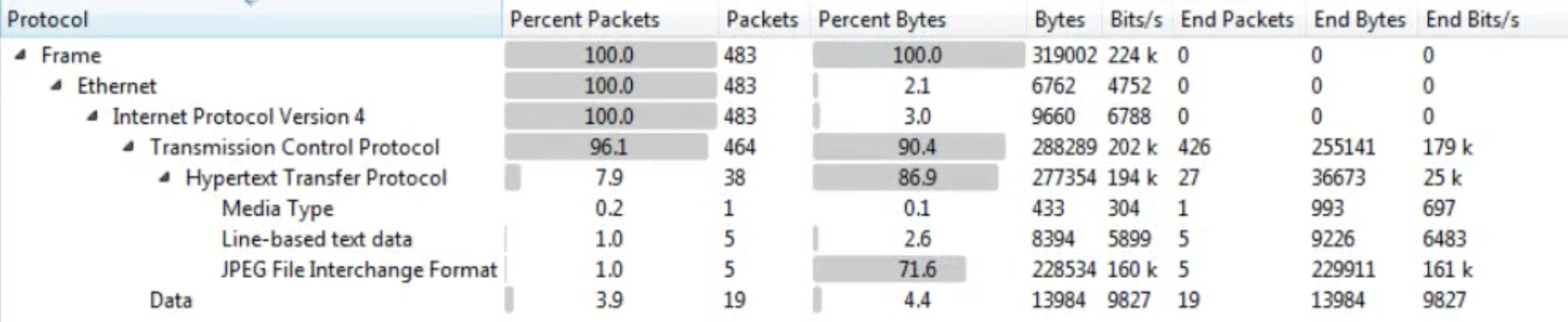
Protocol Hierarchy
Under Statistics --> Protocol Hierarchy you can find the protocols involved in the communication and data about them.
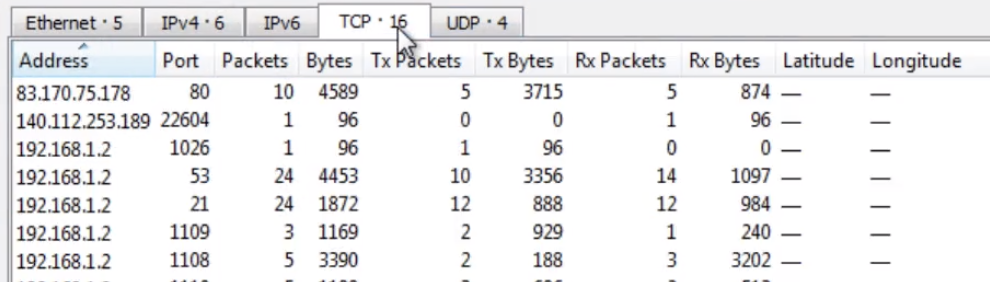
Conversations
Under Statistics --> Conversations you can find a summary of the conversations in the communication and data about them.

Endpoints
Under Statistics --> Endpoints you can find a summary of the endpoints in the communication and data about each of them.
DNS info
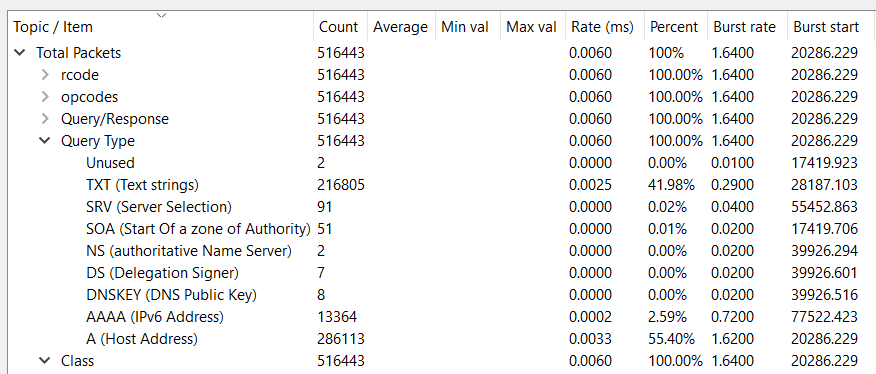
Under Statistics --> DNS you can find statistics about the DNS request captured.
I/O Graph
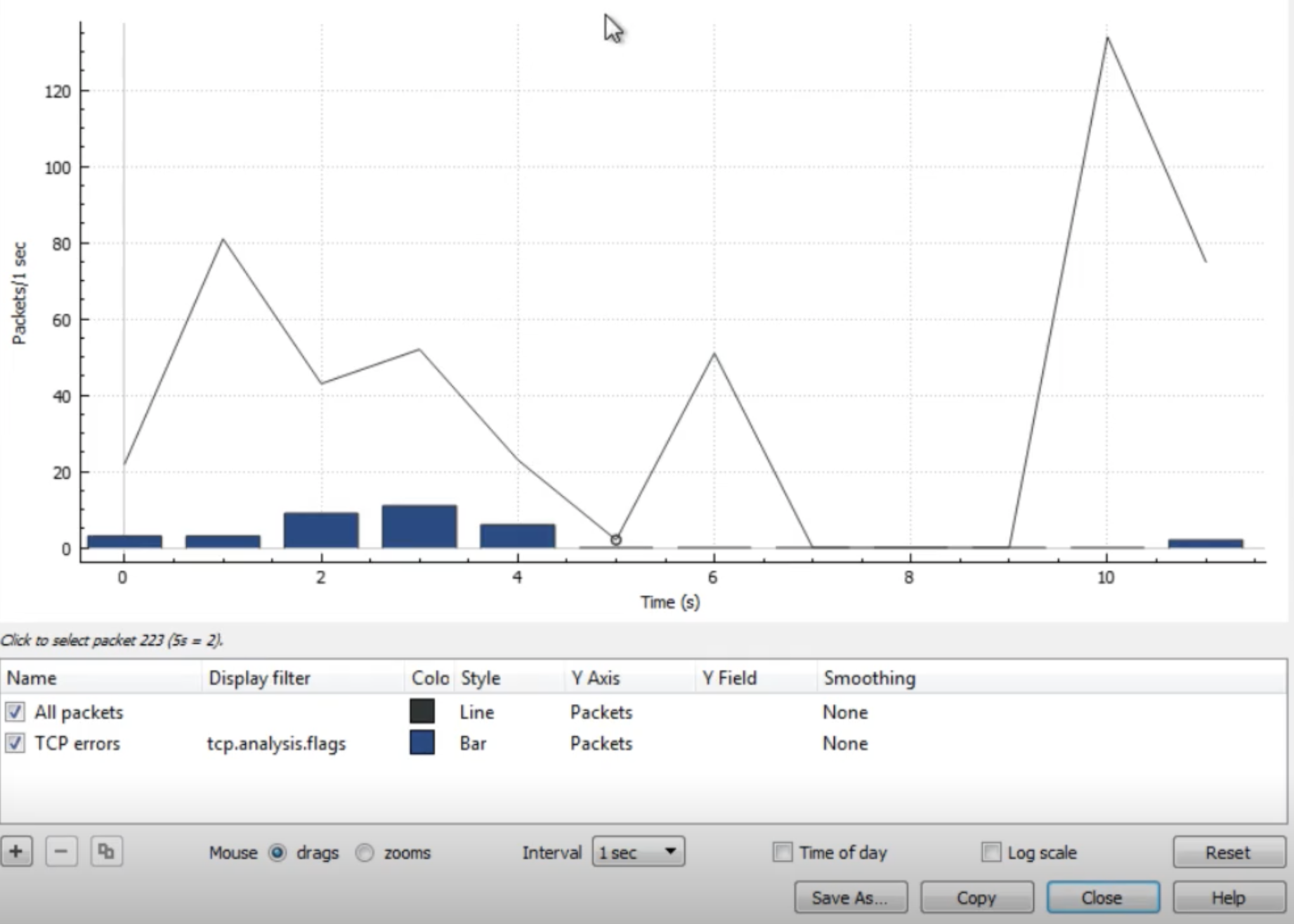
Under Statistics --> I/O Graph you can find a graph of the communication.
Filters
Here you can find wireshark filter depending on the protocol: https://www.wireshark.org/docs/dfref/\
In current Wireshark use tls.* instead of the old ssl.* filter names.\
Other interesting filters:
(http.request or tls.handshake.type == 1) and !(udp.port eq 1900)- HTTP and initial HTTPS traffic
(http.request or tls.handshake.type == 1 or tcp.flags eq 0x0002) and !(udp.port eq 1900)- HTTP and initial HTTPS traffic + TCP SYN
(http.request or tls.handshake.type == 1 or tcp.flags eq 0x0002 or dns) and !(udp.port eq 1900)- HTTP and initial HTTPS traffic + TCP SYN + DNS requests
tls.handshake.extensions_server_name contains "example.com"- Pivot on the SNI sent in the ClientHello even when you cannot decrypt the payload
tls.handshake.extensions_alpn_str == "h2" or tls.handshake.extensions_alpn_str == "h3"- Split classic HTTPS, HTTP/2 and HTTP/3 capable sessions quickly
quic or http3- Find modern UDP/443 traffic that will be missed if you only review TCP conversations
Search
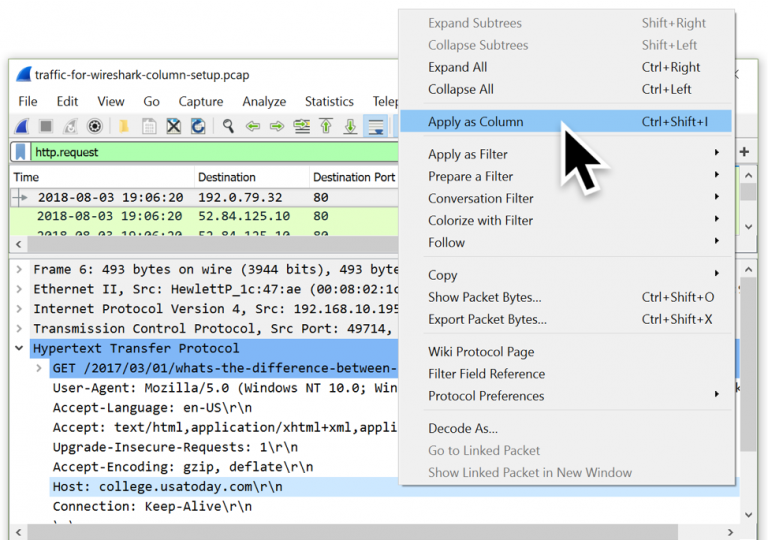
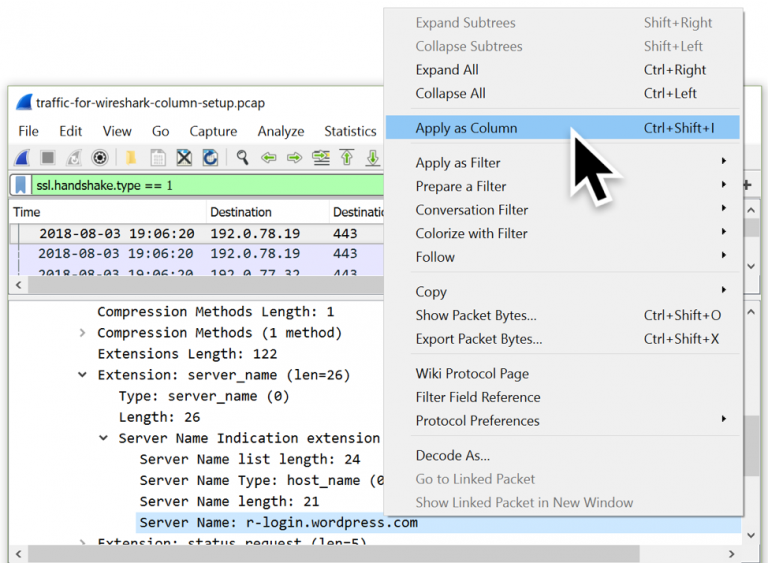
If you want to search for content inside the packets of the sessions press CTRL+f. You can add new layers to the main information bar (No., Time, Source, etc.) by pressing the right button and then the edit column.
Following multiplexed streams
Recent Wireshark versions can follow TLS, HTTP/2 and QUIC streams directly. On noisy captures this is usually faster than only using Follow TCP Stream, especially when several requests share the same connection.
Free pcap labs
Practice with the free challenges of: https://www.malware-traffic-analysis.net/
Identifying Domains
You can add a column that shows the Host HTTP header:
And a column that add the Server name from an initiating HTTPS connection (tls.handshake.type == 1):
If the capture is mostly encrypted, adding these fields as columns will speed up triage a lot:
tls.handshake.extensions_server_nametls.handshake.extensions_alpn_strtls.handshake.ja3tls.handshake.ja4(Wireshark 4.2+)
This lets you cluster sessions by hostname, ALPN (http/1.1, h2, h3, etc.) and client fingerprint even when the payload itself stays encrypted. For decrypted HTTP/2 and HTTP/3 captures, it is also useful to add http2.header.value or http3.headers.header.value as columns and pivot on paths, authorities and other interesting metadata.
tshark -r capture.pcapng -Y "tls.handshake.type == 1" -T fields \
  -e frame.number -e ip.src -e ip.dst \
  -e tls.handshake.extensions_server_name \
  -e tls.handshake.extensions_alpn_str \
  -e tls.handshake.ja3 -e tls.handshake.ja4
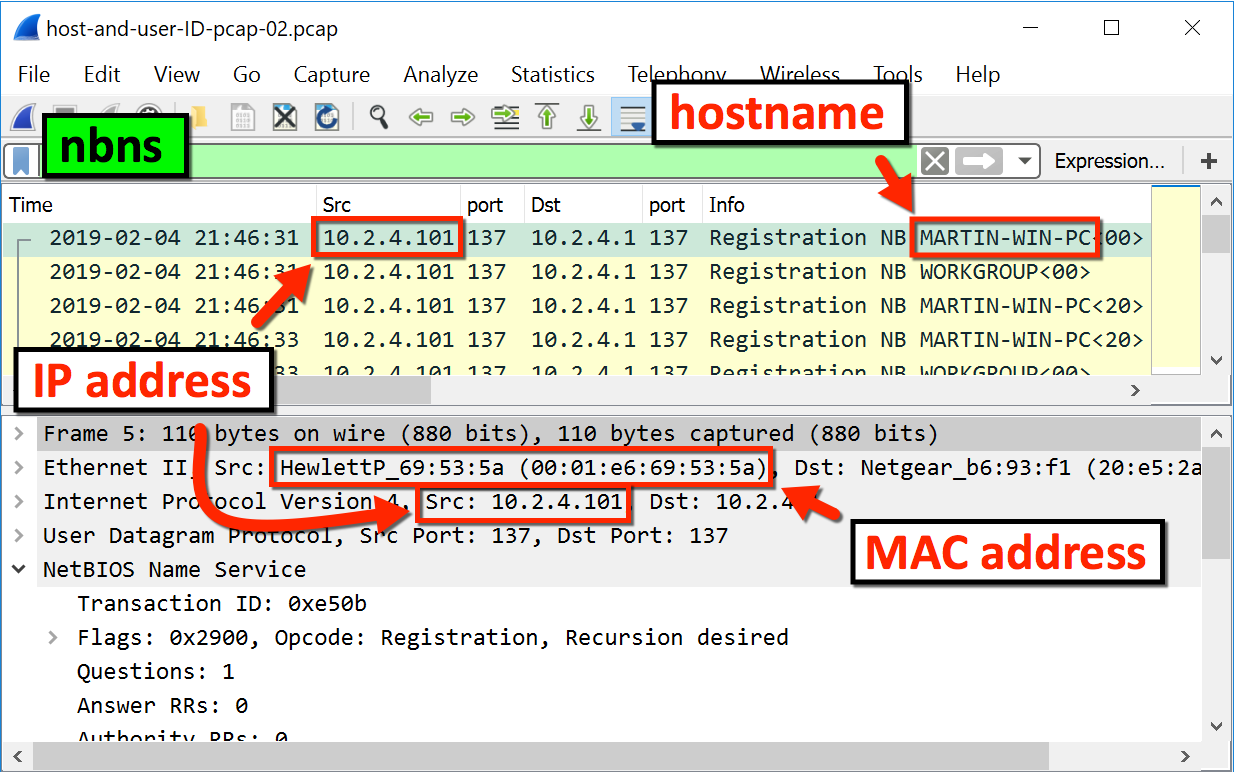
Identifying local hostnames
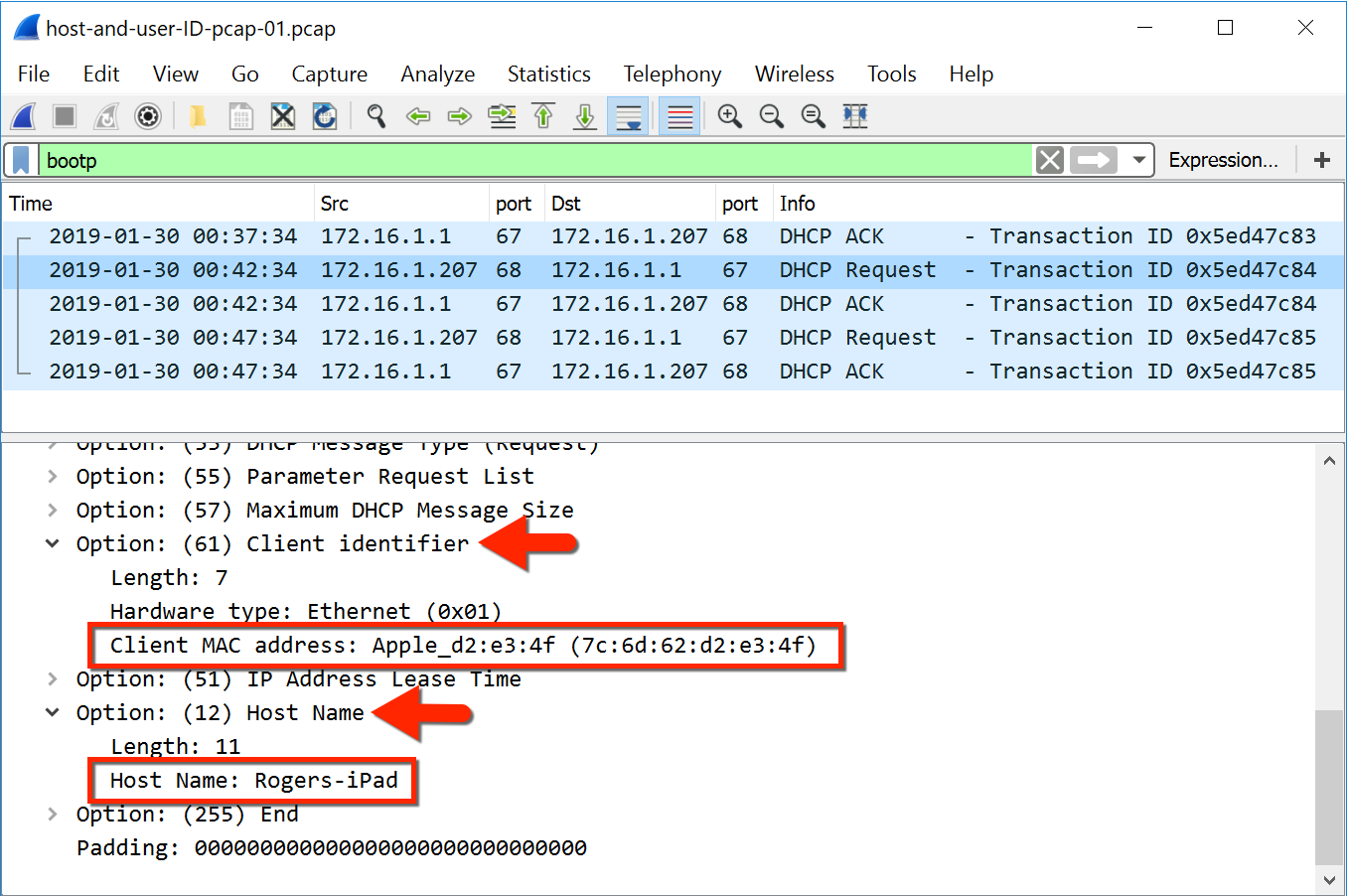
From DHCP
In current Wireshark instead of bootp you need to search for DHCP
From NBNS
Decrypting TLS
Decrypting https traffic with server private key
edit > preferences > protocols > tls >
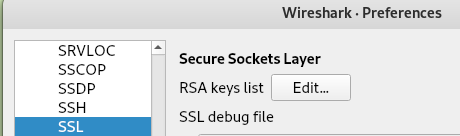
Press Edit and add all the data of the server and the private key (IP, Port, Protocol, Key file and password)
This method only works in a limited number of cases. For current TLS 1.3 / ECDHE traffic, the session key log method below is usually the practical option.
Decrypting https traffic with symmetric session keys
Both Firefox and Chrome have the capability to log TLS session keys, which can be used with Wireshark to decrypt TLS traffic. This allows for in-depth analysis of secure communications. More details on how to perform this decryption can be found in a guide at Red Flag Security. This is also the normal route for decrypting modern TLS 1.3 and QUIC/HTTP/3 captures.
To detect this search inside the environment for the variable SSLKEYLOGFILE
A file of shared keys will look like this:

If the capture is pcapng, check whether it already contains embedded decryption secrets before hunting the host filesystem:
editcap --extract-secrets capture.pcapng tls-secrets.txt
To import this in wireshark go to _edit > preferences > protocols > tls > and import it in (Pre)-Master-Secret log filename:

ADB communication
Extract an APK from an ADB communication where the APK was sent:
from scapy.all import *

pcap = rdpcap("final2.pcapng")

def rm_data(data):
    splitted = data.split(b"DATA")
    if len(splitted) == 1:
        return data
    else:
        return splitted[0]+splitted[1][4:]

all_bytes = b""
for pkt in pcap:
    if Raw in pkt:
        a = pkt[Raw]
        if b"WRTE" == bytes(a)[:4]:
            all_bytes += rm_data(bytes(a)[24:])
        else:
            all_bytes += rm_data(bytes(a))
print(all_bytes)

f = open('all_bytes.data', 'w+b')
f.write(all_bytes)
f.close()